
Setup Integrated Stripe Payments
Steps to Set Up Stripe+ Payments:
- Login: Access your admin dashboard at admin.localforyoucarts.com.
- Navigate to Settings: Go to Settings > Payments > Add Payment Method > Stripe > Add Method.
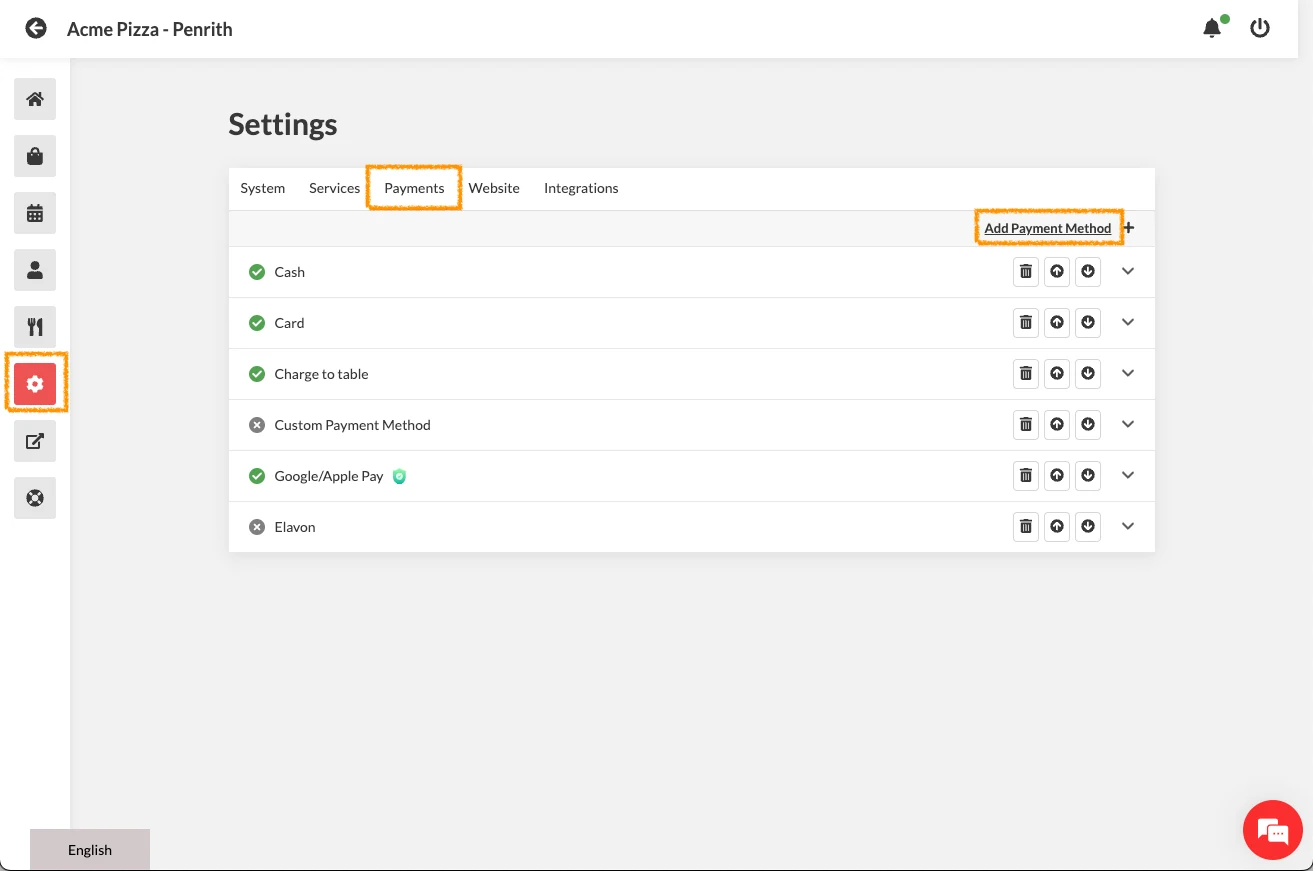
Settings > Payments > Add Payment Method > Stripe > Add Method
Recommended Minimum Settings for Stripe:
| Setting | Recommendation | Notes |
|---|---|---|
| Enabled | On | Activates the feature |
| Stripe Secret Key | sk_live | |
| Stripe Publishable Key | pk_live | |
| Currency | AUD - Australian Dollar - $ | Use your local currency |
| Disable E-Mail Receipt | ||
| Enable Custom Payment Form | ||
| Layout | Themes | |
| Services | Label | Pay - Online |
| Delivery Label | Print Label | PAID - ONLINE |
| Maximum Order Value ($) | 999 | Set a realistic maximum online order total |
| Minimum Order Value ($) | 2 | Minimum transaction should not be lower than $2 |
| SC Account ID | GET THIS FROM SUPPORT | Example format - acct_1A3abABCABCac1aA. Contact chat/email support to activate your SC Account ID. |
- Save Settings: Press Save to apply the settings.
- Test Your Setup: Launch your store and place a live test order using your card, Google Pay, or Apple Pay.